

User Manual
awaBerry | S3 Storage Configuration
The S3 Storage Configuration screen allows users to connect their own S3-compatible cloud storage for unlimited file uploads and downloads in the file browser.
S3 Storage Configuration
Summary
This screen lets users configure their own S3-compatible cloud storage (AWS S3, Cloudflare R2, DigitalOcean Spaces, Backblaze B2, IONOS S3, or a custom endpoint) for use with the awaBerry file browser. When own S3 storage is configured, file uploads and downloads bypass the awaBerry cloud proxy and go directly to the user's bucket, removing per-file size limits. The secret key is encrypted using the user's device authentication key before being stored.
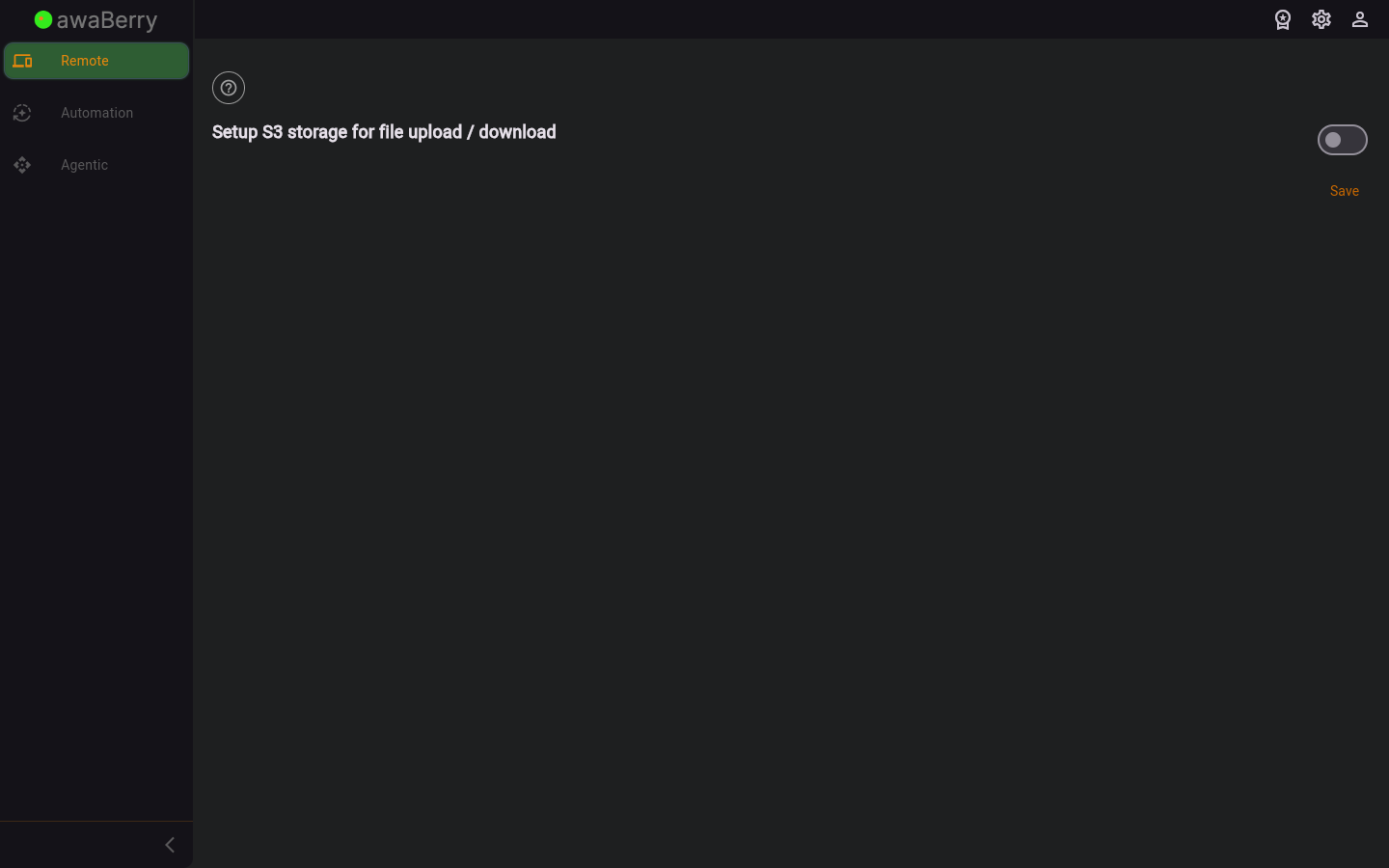
Screen on arrival
Page Functionalities
- Enable/Disable Switch: Toggles whether own S3 storage is used. Disabling it clears all stored S3 credentials.
- S3 Provider dropdown (DropdownButtonFormField): Choose from AWS S3, Cloudflare R2, DigitalOcean Spaces, Backblaze B2, IONOS S3, or Custom URL. Selecting a provider auto-fills the endpoint URL where applicable.
- Cloudflare Account ID field (TextFormField): Shown when Cloudflare R2 is selected. The endpoint URL is generated automatically from the account ID.
- DigitalOcean Region dropdown (DropdownButtonFormField): Shown when DigitalOcean Spaces is selected. Available regions: nyc3, sfo3, ams3, sgp1, fra1, syd1.
- Backblaze B2 Endpoint field (TextFormField): Shown when Backblaze B2 is selected.
- S3 URL field (TextFormField): Shown for the Custom URL provider. Must start with
http://orhttps://. - Generated S3 URL field (read-only): Shown for Cloudflare and DigitalOcean to display the auto-constructed endpoint.
- Bucket Name field (TextFormField): The name of the S3 bucket.
- Region field (TextFormField): The bucket region, e.g.
us-west-1. - Access Key field (TextFormField, obscured): The S3 access key ID. Toggle icon shows/hides the value.
- Secret Key field (TextFormField, obscured): The S3 secret access key. Toggle icon shows/hides the value. Encrypted before storage.
- Verify and Save button (TextButton): Validates credentials against the S3 endpoint without CORS, then tests CORS, and stores the configuration.
- Save button (TextButton): Shown when S3 is disabled — clears and saves the empty configuration.
- CORS Setup section: Appears after credentials are validated. Shows provider-specific CORS policy JSON (with a copy-to-clipboard IconButton) and a Test CORS button.
- Error messages: Shown in red when credential validation or CORS testing fails.
- Success messages: Shown in green when credentials are valid or CORS is correctly configured.
Scenario: Connecting an AWS S3 bucket
- Open the S3 Storage Configuration screen (
/user_s3). - Enable the top switch.
- Select AWS S3 from the provider dropdown. The endpoint URL is filled automatically.
- Enter the Bucket Name, Region, Access Key, and Secret Key.
- Click Verify and Save. A loading indicator is shown.
- If credentials are valid, a green success banner appears and the CORS setup section is shown.
- Copy the displayed AWS CORS policy JSON using the copy button and apply it in your AWS S3 bucket settings.
- Click Test CORS to verify the CORS configuration. A green banner confirms success.
Scenario: Disabling own S3 storage
- Open the S3 Storage Configuration screen.
- Toggle the enable switch to OFF.
- Click Save. The credentials are cleared from the database and the dialog closes.

