

User Manual
awaBerry | Your Stored Data (GDPR)
The Stored Data Report screen shows all data held in the user's awaBerry account and allows downloading it as a JSON file for GDPR Article 15 compliance.
Your Stored Data (GDPR)
Summary
This screen fulfils the GDPR Article 15 right of access by displaying all data stored for the user's account in the awaBerry backend. When the screen loads it automatically fetches an export of all user data from Supabase. The user can browse the data grouped by database table, expand individual tables to inspect rows, and download the entire export as a formatted JSON file. The screen also handles loading and error states with a retry button.
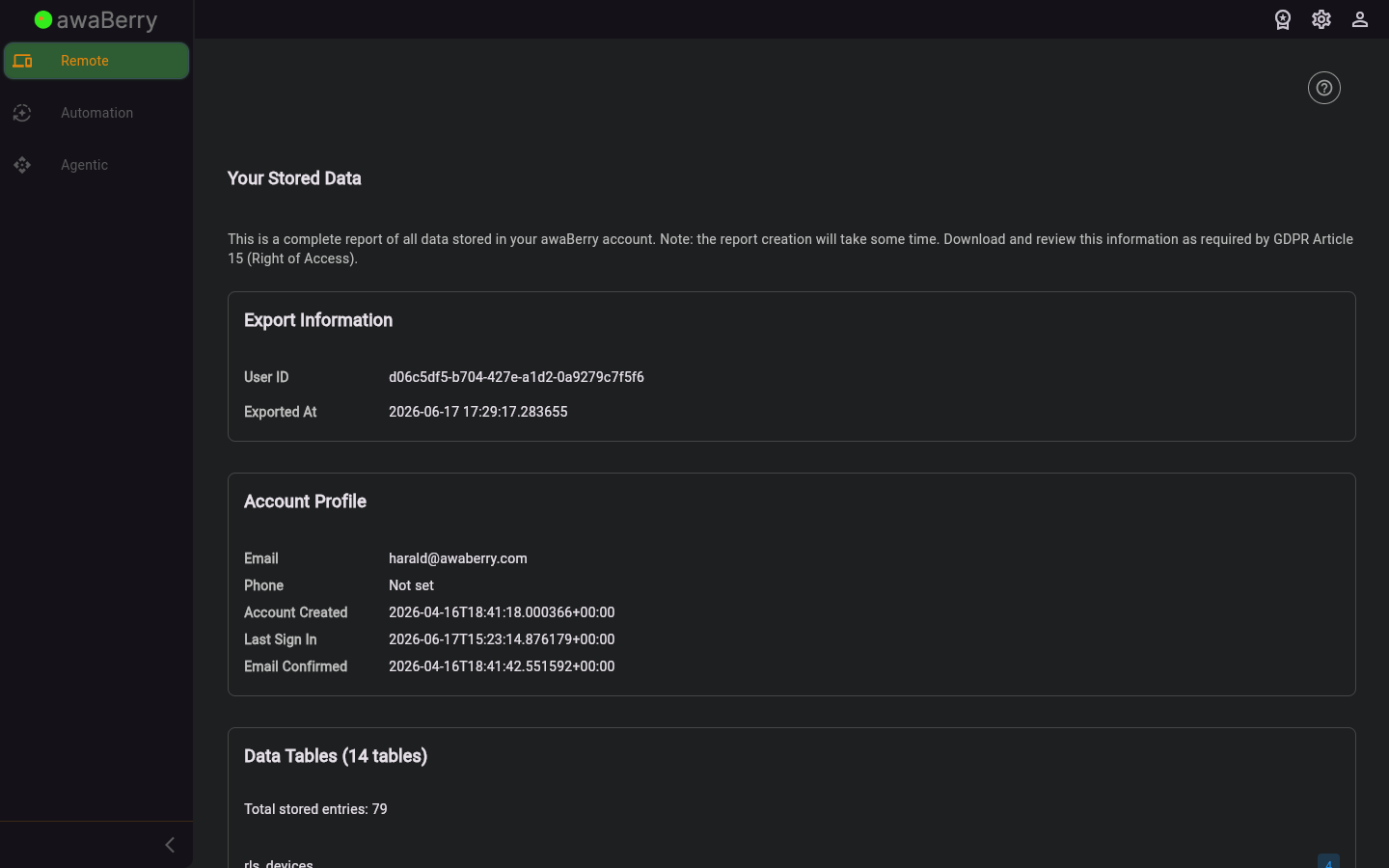
Screen on arrival
Page Functionalities
- Automatic data loading: On mount the screen calls the GDPR export endpoint and shows a circular progress indicator while loading.
- Error state with Retry button (TextButton): If loading fails, a red error box is shown with a Retry button to attempt the fetch again.
- Export Information section: Shows the user ID and the timestamp at which the export was generated.
- Account Profile section: Displays the registered email, phone (if set), account creation date, last sign-in date, and email confirmation date.
- Data Tables Count section: Lists all database tables with a row-count badge for each, and shows the total number of stored entries across all tables.
- Table Details section (expandable rows): Each table is shown as a collapsible card. Tapping the card header expands it to show up to 10 data rows formatted as pretty-printed JSON in read-only text areas. A note is shown if there are more than 10 rows.
- Download as JSON button (TextButton): Triggers a browser download of the full export as a timestamped
.jsonfile (e.g.awaberry_data_export_2026-01-15T10-30-00.json). - User manual link: A link to the GDPR / stored data section of the user manual.
Scenario: Viewing and downloading stored data
- Open User Settings and click Open report in the View Stored Data section, or navigate to
/user_reportstoreddata. - The screen loads and a spinner is shown while data is fetched.
- Once loaded, review the Export Information and Account Profile sections.
- In the Data Tables section, see the list of tables and row counts.
- Click on a table header to expand it and inspect the individual data rows.
- Click Download as JSON to download the full export to your device.
Scenario: Handling a load error
- If the data fails to load, a red error box is displayed.
- Click Retry to attempt fetching the data again.

