

User Manual
awaBerry | Licence Settings
The Licence Settings screen displays the user's current licence plan, category, subscription status, and daily usage, with an option to manage the subscription.
Licence Settings
Summary
This screen provides an overview of the user's active licence, including the licence name, category (commercial, private, or connect), subscription status (trialing, active, or expired), and the validity expiry date. It also shows daily usage statistics for all licence-limited features. Users with a non-connect licence can open the subscription management portal to change or cancel their plan.
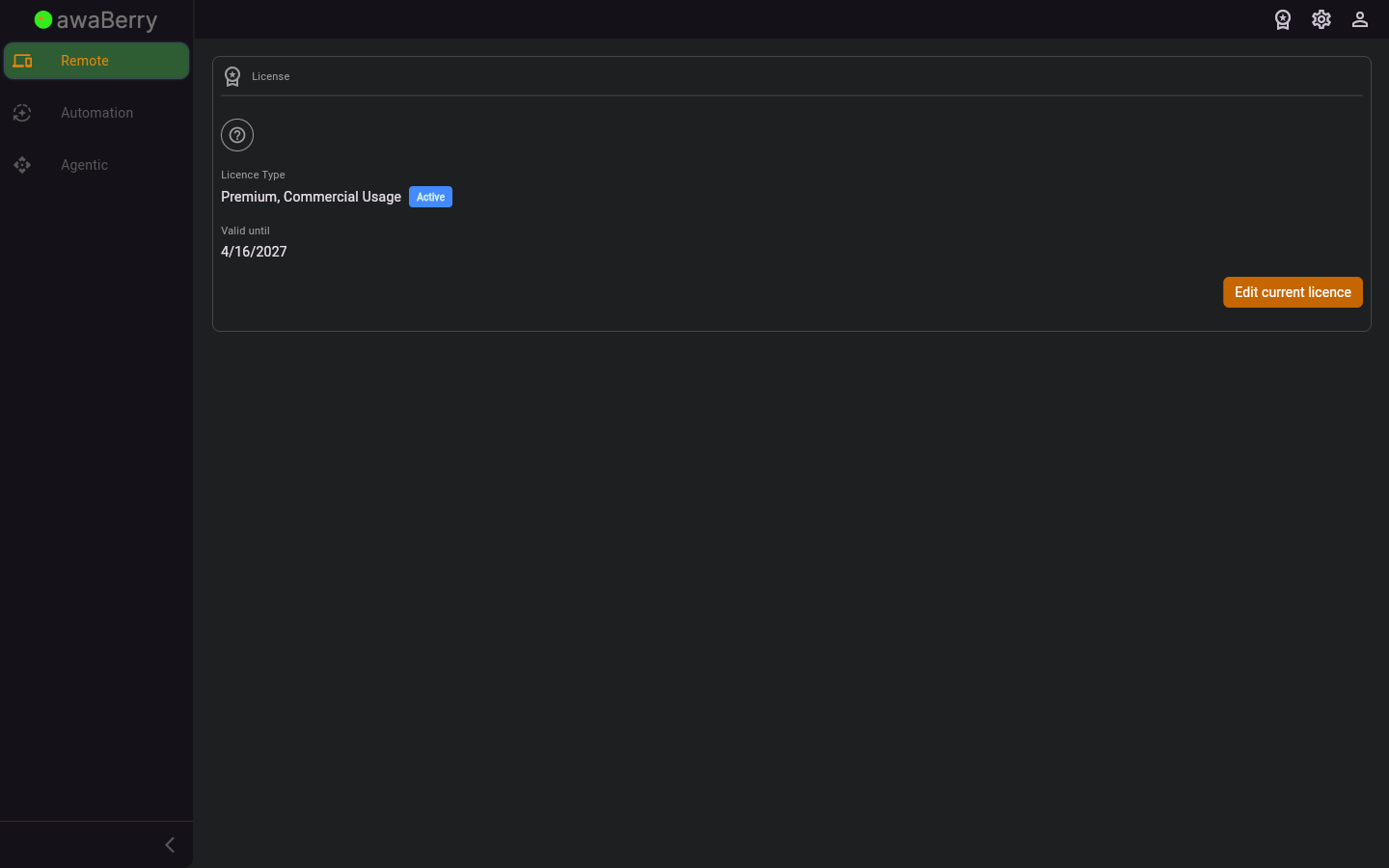
Screen on arrival
Page Functionalities
- Licence icon and header: Shows the licence icon, category label, and an "Expired" badge if the licence is inactive.
- Licence Type display: Shows the licence name (e.g. "Basic"), usage category (Commercial / Private / Connect), and a status badge (Trial Phase / Active / Expired).
- Valid Until display: Shows the formatted subscription expiry date.
- Store info message: If the subscription was activated via a different store (e.g. Apple Store on Android), an informational blue box explains where to manage the subscription.
- Edit Current Licence button (TextButton): Opens the licence edit / upgrade flow in a modal page route. Only shown for non-connect licences and when no cross-store restriction applies.
- Daily Usage Statistics (DisplayDailyUsageStatistics widget): Bar charts and counters comparing today's usage of remote session time, intelligent terminal commands, file transfers, VNC time, and web-to-local sessions against the plan limits.
- No licence message: If no licence data is available, displays "No licence yet available".
- User manual link: A link back to the licence settings section of the user manual.
Scenario: Reviewing current licence status
- Navigate to
/user_licencefrom the user settings sidebar. - The screen loads the current licence data.
- Review the licence name, category, status badge, and expiry date.
- Scroll down to see today's feature usage bar charts.
Scenario: Managing / upgrading a subscription
- On the Licence Settings screen, click Edit Current Licence.
- The licence setup page opens in a modal route, showing available plans.
- Select a new plan and billing period.
- For paid plans, the user is redirected to the Stripe portal to complete the change.

