

User Manual
awaBerry | AI Intelligence Provider Setup
The AI Intelligence Provider Setup screen allows users to configure their own Google Gemini or Anthropic Claude API keys for unlimited use of awaBerry's intelligence routines.
AI Intelligence Provider Setup
Summary
This screen enables users to provide their own Google Gemini or Anthropic Claude API keys. When a personal API key is configured, awaBerry's Smart Terminal and other intelligence features use that key directly, allowing unlimited usage beyond the subscription quota. The key is validated against the provider's API before being encrypted and stored. This screen is accessed from the User Profile screen or the Google API Key settings page.
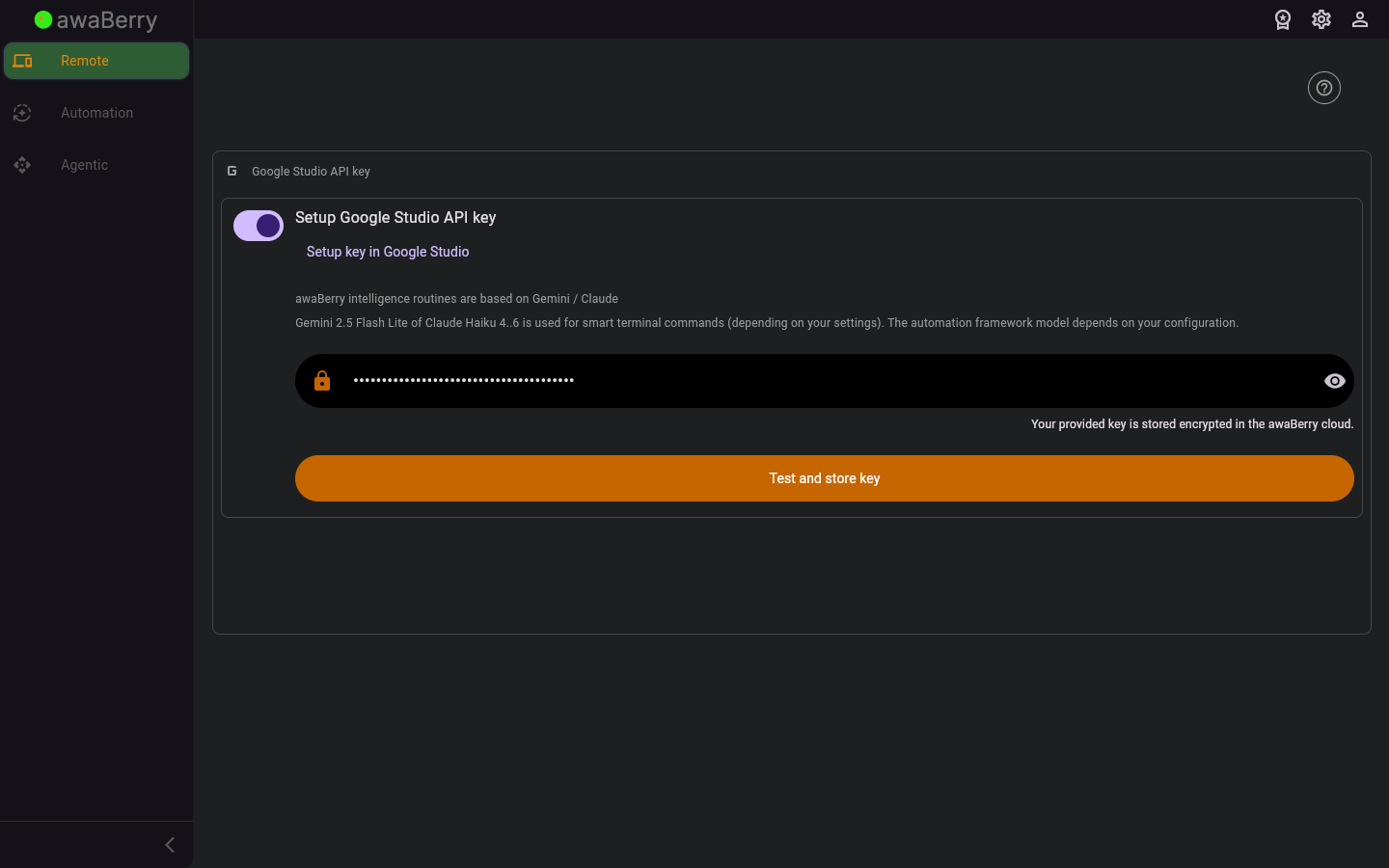
Screen on arrival
Page Functionalities
Google Gemini API Key
- Enable/Disable Switch: Toggles whether the personal Google Studio API key is used.
- Setup key in Google Studio link (TextButton): Opens
https://aistudio.google.comin an external browser so the user can create an API key. - Google Studio API key field (TextFormField, obscured): Input field for the Gemini API key. Toggle icon shows/hides the value.
- Test and store key button (ElevatedButton): Validates the key by sending a test prompt to the Gemini API, then encrypts and stores it on success.
- Update button (ElevatedButton): Shown when the switch is OFF — disables the key and clears it from storage.
- Error message: Red box shown when the key test fails.
- Encryption note: Small text explaining that the key is stored encrypted using the device authentication key.
Anthropic Claude API Key
- Enable/Disable Switch: Toggles whether the personal Anthropic API key is used.
- Setup key in Claude Console link (TextButton): Opens
https://platform.claude.com/in an external browser. - Anthropic API key field (TextFormField, obscured): Input field for the Claude API key. Toggle icon shows/hides the value.
- Test and store key button (ElevatedButton): Validates the key, then encrypts and stores it on success.
- Update button (ElevatedButton): Disables and clears the key when the switch is OFF.
- Error message: Red box shown when the key test fails.
Scenario: Adding a Google Gemini API key
- Open the User screen and click Setup next to the Google Gemini row, or navigate to
/user_googleapikey. - Click the Setup key in Google Studio link to create an API key if you don't have one.
- Enable the toggle switch.
- Paste your Gemini API key into the input field.
- Click Test and store key.
- The app sends a test prompt to Google Gemini to verify the key.
- On success a snackbar confirms "Google API key stored" and the dialog closes.
- On failure a red error box is shown — check the key and try again.
Scenario: Removing an existing API key
- Open the intelligence provider setup dialog.
- Toggle the switch to OFF.
- Click Update. The key is cleared from the database and the dialog closes.

