

User Manual
awaBerry | Web-to-Local Tunnel
Zero-trust web-to-local tunnel screen for exposing a port on the remote device as a reachable URL.
Web-to-Local Tunnel
Summary
The Web-to-Local screen lets you expose a locally running service on the remote device (such as a web server or API) through awaBerry's zero-trust network as a public or team-accessible URL. No VPN or port-forwarding rules are required. The view is loaded inside the application shell under the devices_wtl session key.
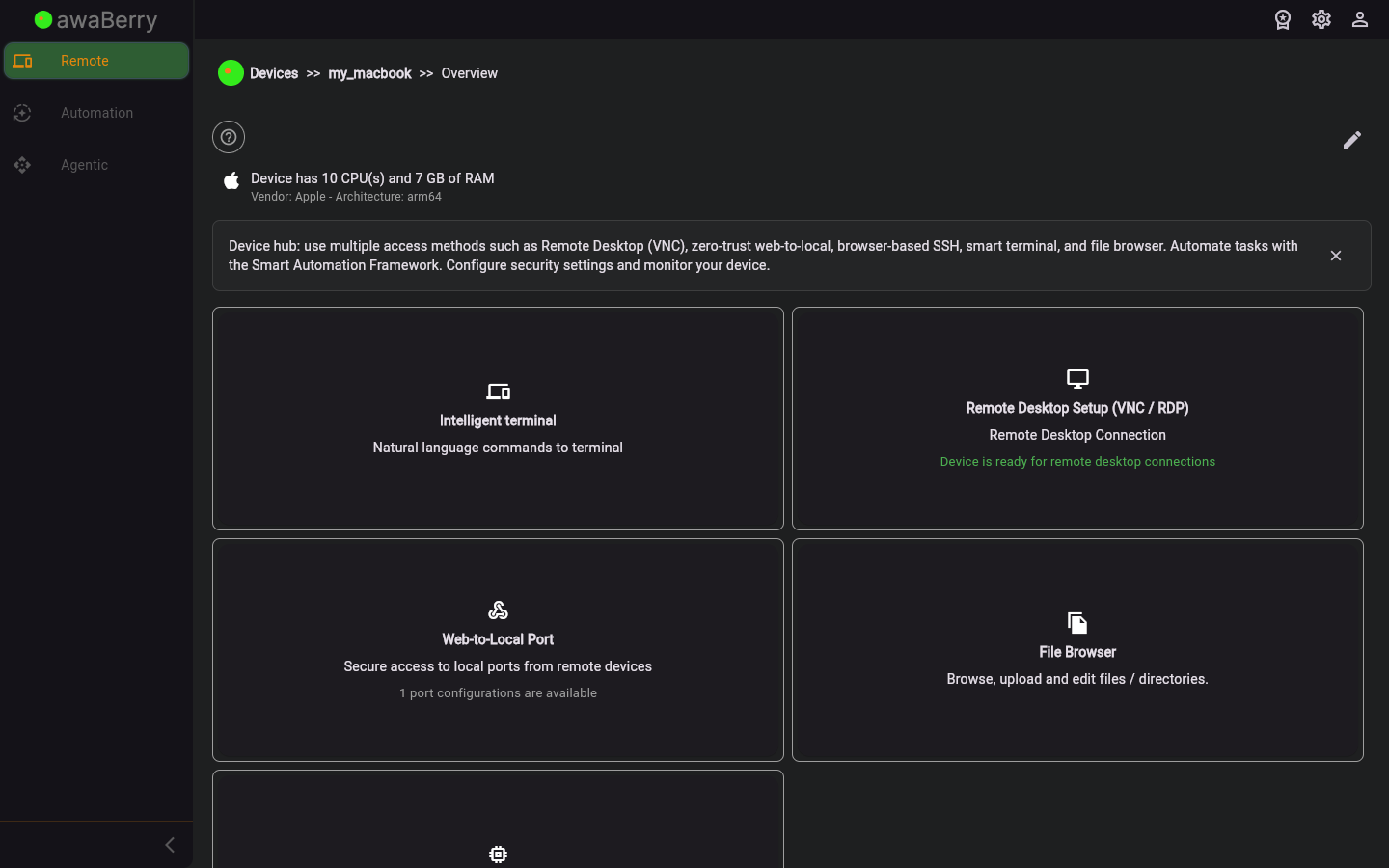
Screen on arrival
Page Functionalities
- Tunnel configuration — Specify the local port on the device to expose and optionally a custom subdomain.
- Start / stop tunnel — Button to activate or deactivate the tunnel; when active, a URL is displayed that proxies traffic to the device port.
- URL display — Shows the generated public URL for the active tunnel.
- Access control — Options to restrict tunnel access to your account or specific team members.
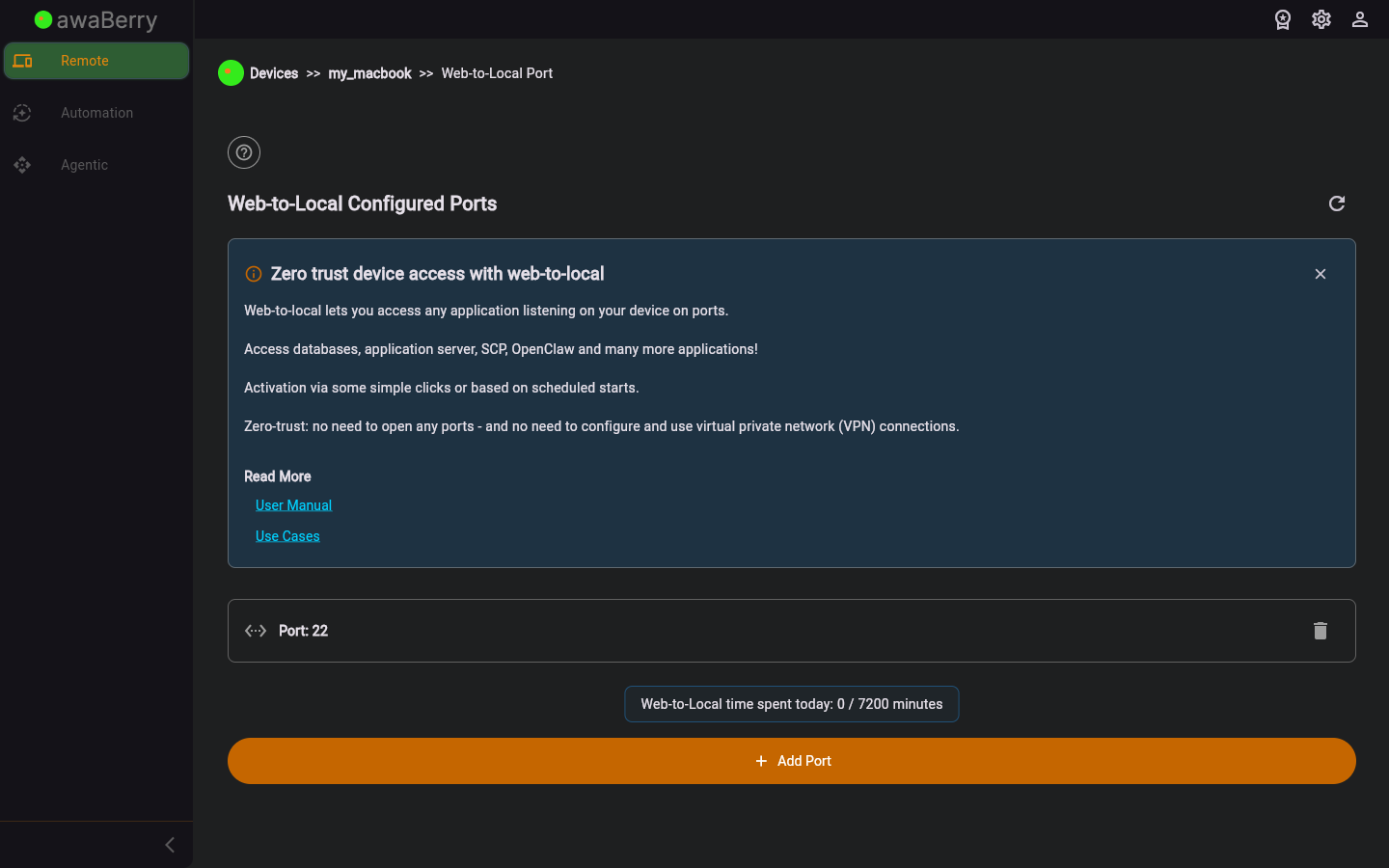
Screen after interaction
Scenarios
Expose a local web server on the remote device
- Select a device and open its configuration panel at
/devices_configure. - Click the Web-to-Local tab to navigate to
/devices_web_to_local. - Enter the port number of the service running on the device (e.g.,
8080). - Click Start Tunnel.
- Copy the generated URL and open it in a browser to access the remote service.
- Click Stop Tunnel to deactivate the tunnel when done.

