

User Manual
awaBerry | File Browser
Web-based file browser for browsing, editing, uploading, and downloading files on the remote device over SSH.
File Browser
Summary
The File Browser screen provides a graphical interface to the remote device's filesystem over an SSH connection. You can navigate directories, upload or download files, rename items, create new files and folders, delete entries, edit text files in a built-in editor, and sync files to or from S3. The screen also handles all SSH connection states (initialising, connected, timed out, expired, failed, etc.).
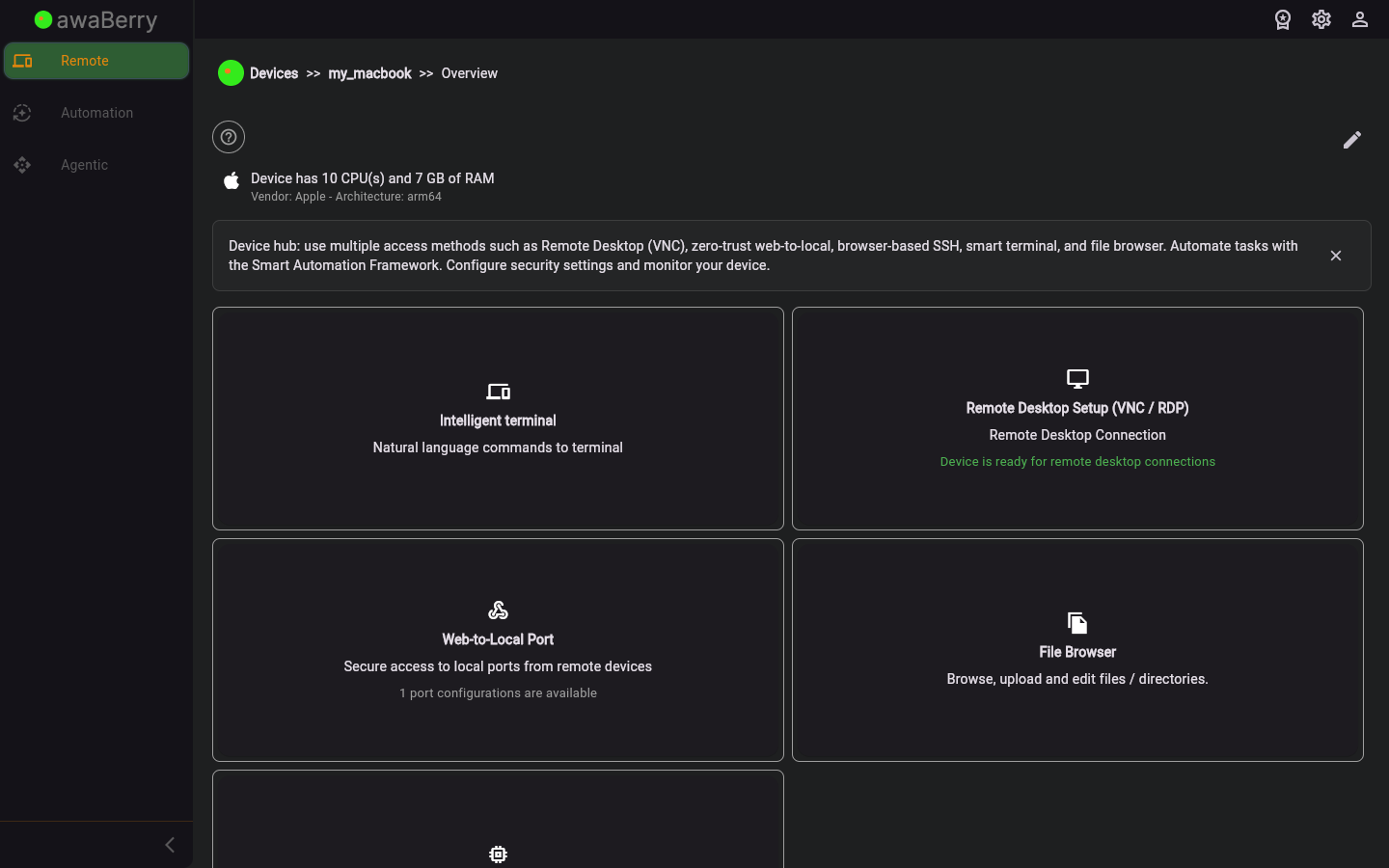
Screen on arrival
Page Functionalities
- Directory listing — Displays the current directory's files and sub-folders with icons, names, and sizes.
- Navigate into folder — Tap a directory to change into it (sends a
cdcommand over SSH). - Navigate up — Button to go one directory level up.
- File context menu — Long-press or right-click a file to open a popup with: Rename, Delete, Download, Edit, Upload to S3, Download from S3.
- Directory context menu — Long-press or right-click a folder to open a popup with: Rename, Delete, Download from S3.
- Create new file dialog — Dialog to enter a name for a new empty file.
- Create new folder dialog — Dialog to enter a name for a new directory.
- File editor — Opens a rich-text / code editor for the selected file; shows unsaved-changes alert on close.
- Confirm-delete dialog — Confirmation prompt before permanently deleting a file or directory.
- Upload progress indicator — Shows upload progress when transferring files.
- Keep-alive routine — Automatically sends keep-alive commands to maintain the SSH session during inactivity.
- Connection state widgets — Displays initialising, timeout, expired, failed, and unencrypted-not-allowed states with appropriate actions.
Scenarios
Browse and navigate the remote filesystem
- From the device configuration panel, click File Browser.
- The app navigates to
/devices_filebrowserand loads the home directory listing. - Tap a folder to enter it, or use the Up button to go to the parent directory.
Edit a remote file
- Locate the file in the directory listing.
- Open the file context menu and choose Edit.
- The built-in editor opens with the file content.
- Make your changes and save; the file is written back to the device.
- If you close without saving, an unsaved-changes dialog asks you to confirm discarding edits.
Download a file to your local machine
- Open the file context menu and choose Download.
- The file is transferred and saved to your browser's download folder.
Upload a file to S3
- Open the file context menu and choose Upload to S3.
- The file is sent to the S3 bucket configured in your user settings.
- An upload-progress indicator is shown during the transfer.
Create a new folder
- Click the New Folder action.
- Enter the folder name in the dialog and confirm.
- The new directory is created on the remote device and appears in the listing.

