

User Manual
awaBerry | SSH Terminal
Interactive SSH terminal session screen for the selected device, supporting both a classic terminal and an AI-powered smart terminal (chat) view.
SSH Terminal
Summary
This screen manages the full lifecycle of an SSH session with the selected device. It shows a loading indicator while the session initialises, then switches to either a classic terminal view or an AI-powered smart terminal (chat) view depending on your preference. If the session times out, fails, or is disconnected, the screen shows the appropriate status widget and options to reconnect or return to the device configuration page.
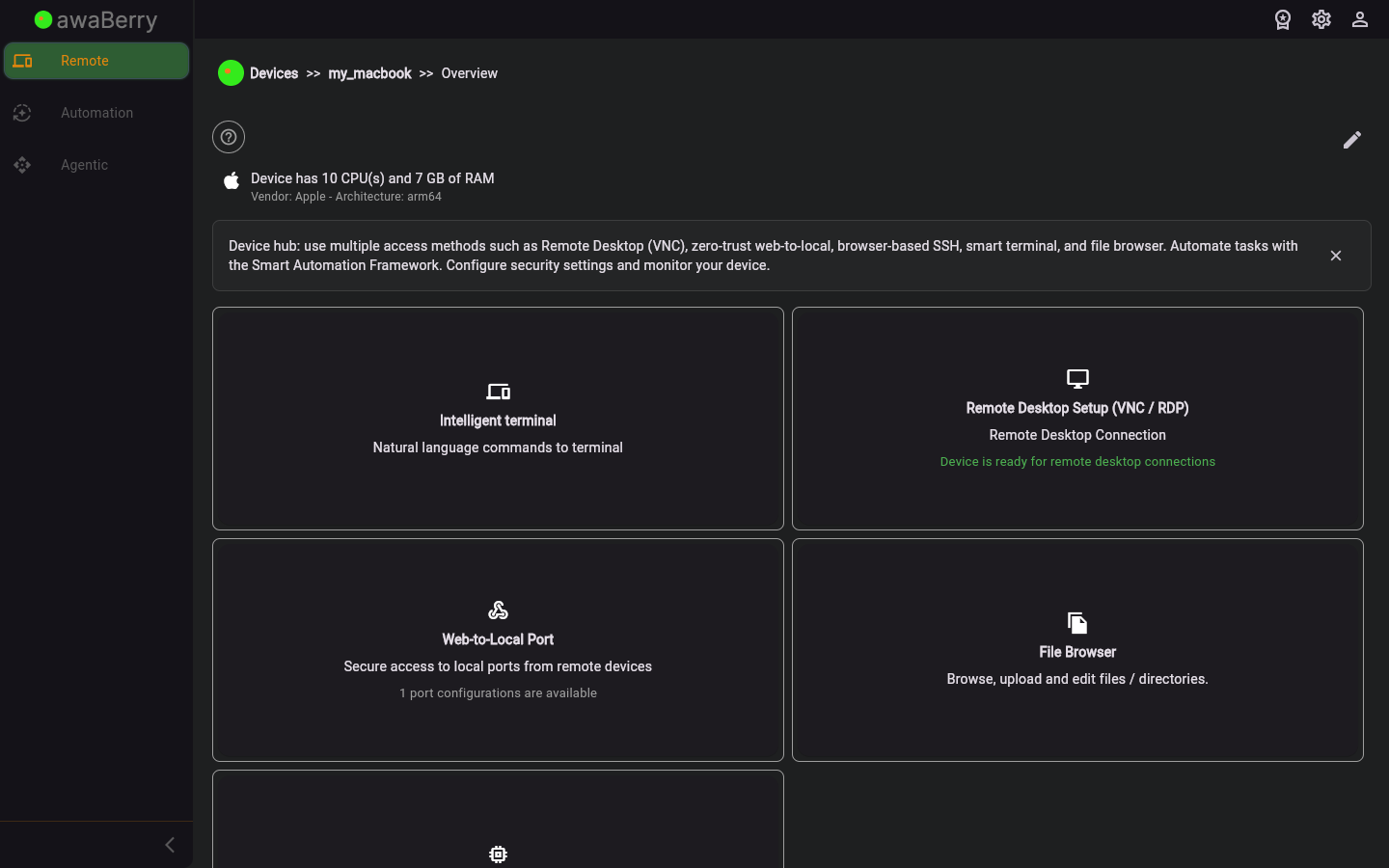
Screen on arrival
Page Functionalities
- SSH initialisation view — Displayed while the secure connection is being established; shows a loading spinner.
- Terminal view — A full interactive SSH terminal that forwards keyboard input and displays device output in real time.
- Smart terminal (chat) view — An AI-assisted interface where you can type natural-language commands and receive intelligent responses; toggled by the showterminalview user preference.
- Toggle terminal / chat — Switches between the classic terminal and the smart terminal views during an active session.
- Connection-timeout widget — Shown when the connection attempt exceeds the time limit; offers a retry action.
- Session-expired widget — Shown when the server ends the session; allows restarting the connection.
- Error widget — Displayed when the SSH session fails to start.
- Session-time-exceeded widget — Shown when your subscription's daily SSH usage limit is reached.
- Unencrypted connection not allowed widget — Displayed when the device requires encryption and unencrypted connections are disabled.
- Disconnect and go back — Button / action to end the current session and navigate back to
/devices_configure.
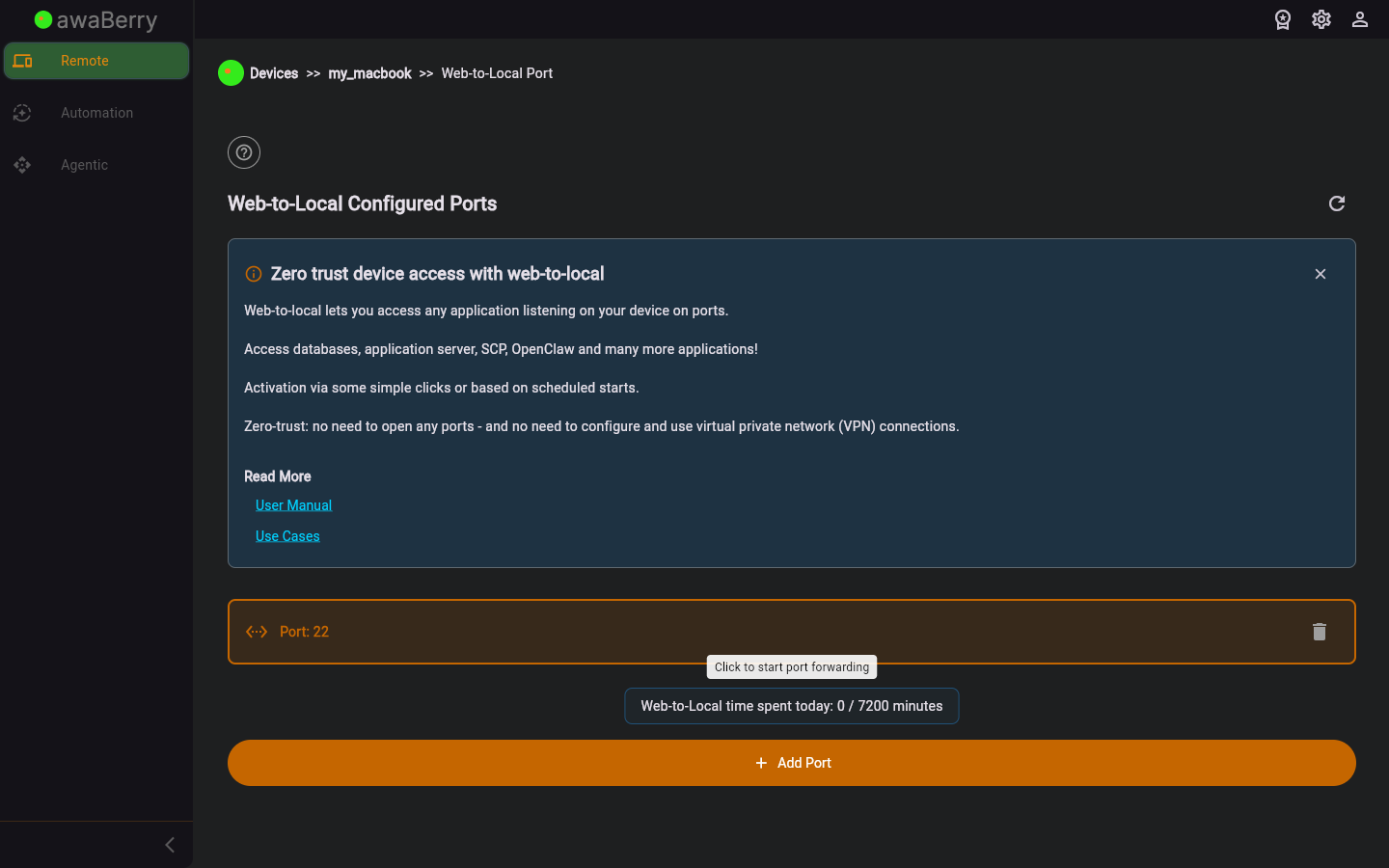
Screen after interaction
Scenarios
Connect to a device via SSH terminal
- Select a device and click the Terminal tab in the device configuration panel.
- The app navigates to
/devices_connectand displays the initialisation view. - Once the session is established, the terminal view appears.
- Type commands; output is displayed in real time.
- To end the session, click the Disconnect button; the app returns to
/devices_configure.
Switch to the smart terminal (chat)
- During an active SSH session, click the Smart Terminal toggle.
- The chat view replaces the terminal view.
- Type natural-language instructions; the AI interprets them and executes the appropriate commands.
- Click Terminal to switch back to the classic terminal view.
Handle a connection timeout
- If the device does not respond in time, the timeout widget is shown.
- Click Retry to attempt reconnection, or navigate back to device configuration.

