

User Manual
awaBerry | Device Smart Automation
Smart automation projects screen scoped to the selected device, for managing and running automation tasks directly on that device.
Device Smart Automation
Summary
This screen shows all smart automation projects associated with the currently selected device. From here you can create new projects, view and edit existing ones, trigger execution, and review results — all scoped to this specific device. The view is loaded inside the automation shell under the automation session key.
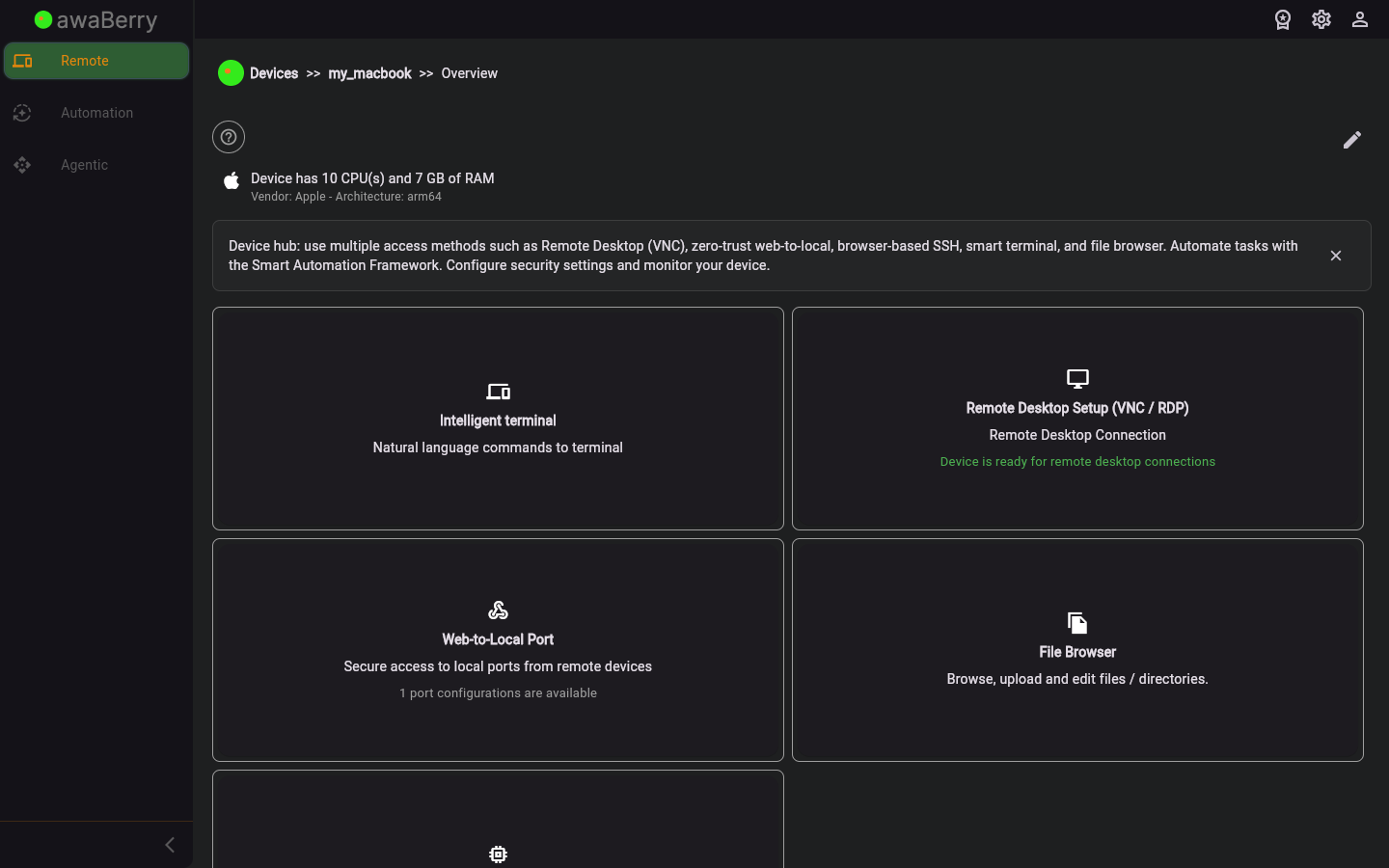
Screen on arrival
Page Functionalities
- Device-scoped project list — Lists automation projects associated with the selected device.
- Create project button — Opens a dialog or wizard to create a new automation project on this device.
- Edit project — Opens the project editor to modify instructions, generate logic, and configure execution.
- Run project — Triggers the automation project to execute on the device immediately.
- View results — Displays the output or log from the last execution run.
Scenarios
Create and run an automation project on a device
- Select a device and click the Smart Automation tab to navigate to
/automation_device. - Click Create Project and enter a name and description for the project.
- Define the automation instructions in the project editor.
- Click Generate Logic to have the AI generate the execution script.
- Click Run to execute the project on the device.
- Review the output in the results panel.

