

User Manual
awaBerry | Add Existing Device
Step-by-step wizard for connecting an existing Linux, Mac, or Windows machine to awaBerry.
Add Existing Device
Summary
This wizard guides you through installing the awaBerry agent on an existing machine that is already running Linux, macOS, or Windows. You are provided with a copy-pasteable install command tailored to your operating system. Once the agent is running and registered, the device appears in your Devices Overview.
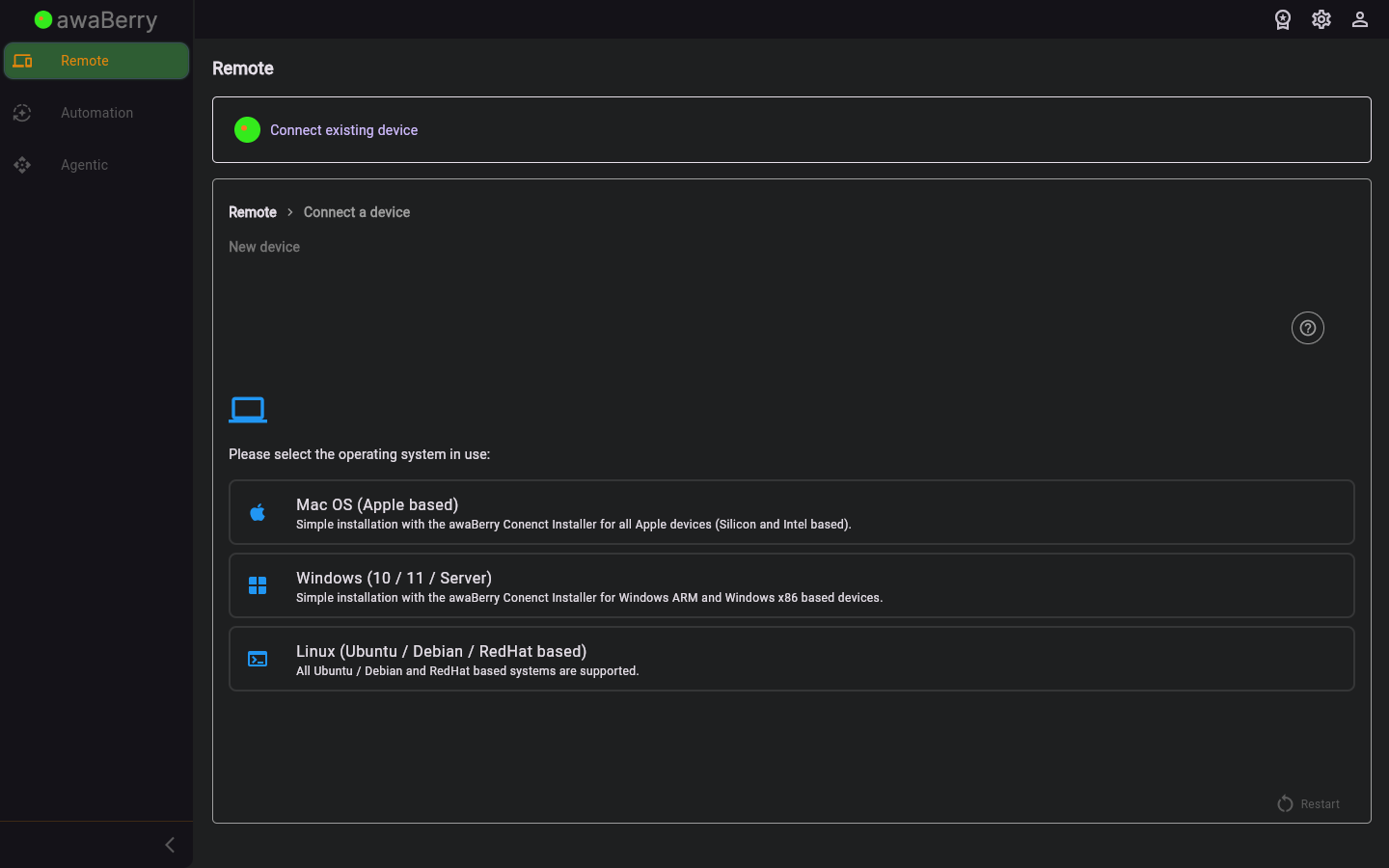
Screen on arrival
Page Functionalities
- OS selection — Radio buttons or tabs to choose between Linux, macOS, and Windows installation paths.
- Install command display — Shows a one-line install command pre-populated with your account token; copy button included.
- Device name field — Text input to give the device a friendly name before registering it.
- Continue button — Advances to the next step once the agent is installed and the device is detected.
- Restart button — Returns to the beginning of the connect wizard.
Scenarios
Add an existing Linux machine
- Navigate to
/connect_steps_existing(via Connect Overview → Add existing device). - Select Linux as the operating system.
- Copy the displayed install command.
- Open a terminal on the target machine and paste the command; the agent installs and starts automatically.
- Return to the wizard and click Continue.
- The device appears in your Devices Overview.

