

User Manual
awaBerry | Agentic API Projects List
Browse all Agentic API projects on the connected device, search by name, and navigate to create or edit a project.
Agentic API Projects List
Summary
The Agentic API Projects List screen shows all Agentic API projects currently configured on the connected device. Each project represents a secured endpoint that external tools, AI agents, or MCP clients can use to interact with the device. From this screen you can search the project list, create a new project, or select an existing project to edit or delete it. This is the entry point for managing programmatic device access.
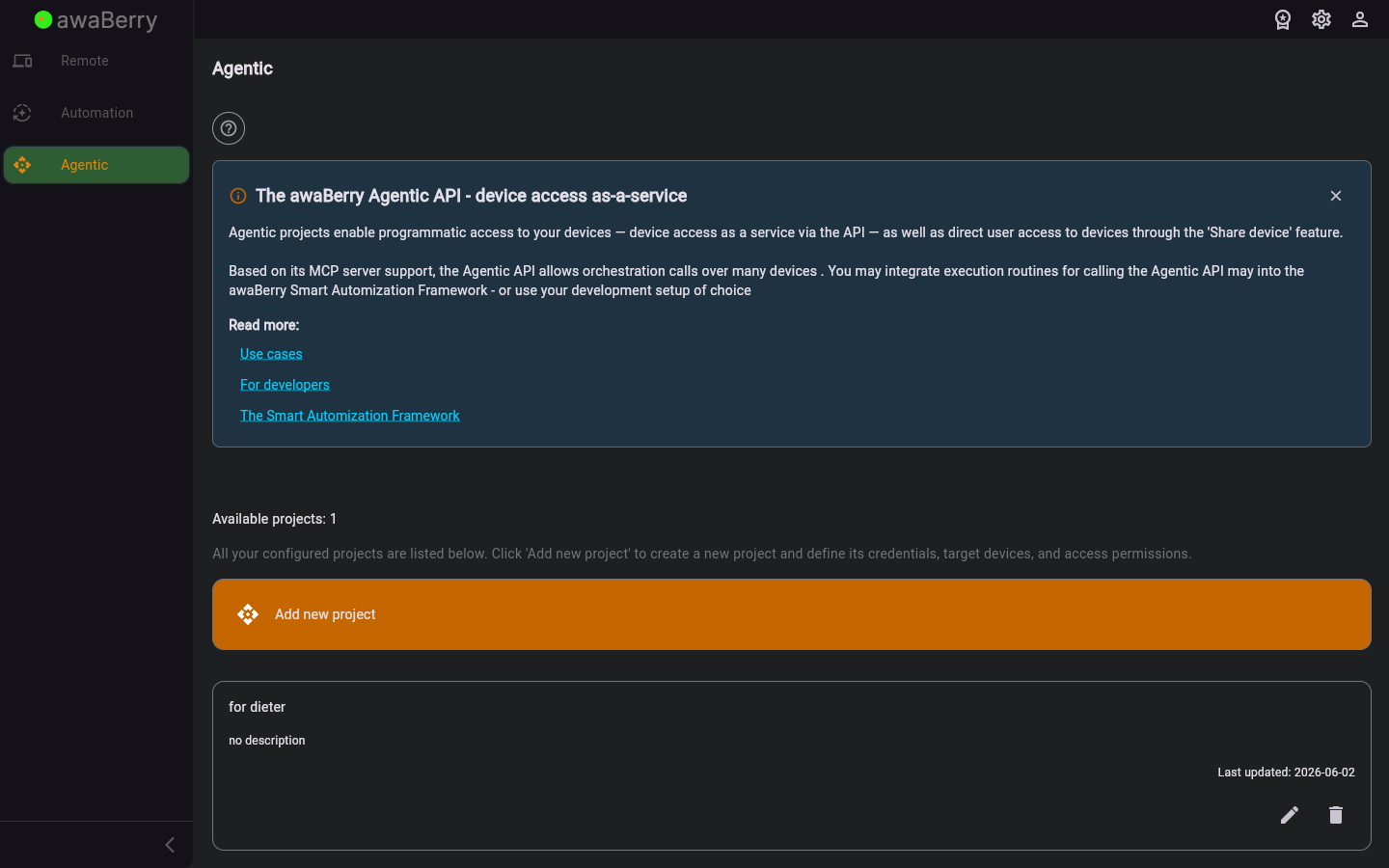
Screen on arrival
Features
- Project list — displays all Agentic API projects as tiles showing the project name and a short description. The list is loaded from the connected device when the screen opens.
- Search / filter field — narrows the displayed projects in real-time by name or description text.
- Project counter — shows the total number of projects available.
- Add / Create button (+ icon) — navigates to the Add or Update Agentic Project screen in create mode for a new project.
- Edit button (pencil icon) — opens the Add or Update Agentic Project screen in edit mode for the selected project, pre-populated with its existing configuration.
- Delete button (trash icon) — shows a confirmation dialog before permanently deleting the selected project from the device.
- Warning badge — if a project has an incomplete or invalid configuration (e.g. missing device, missing permissions), a warning indicator is shown on its tile.
- Pull-to-refresh / reload — reloads the project list from the device backend.
- Empty state — when no projects exist, a prompt guides the user to create their first project.
- Error state — if the list cannot be fetched, an error message is shown with a retry button.
Scenarios
Find and open an existing project
- Open the Agentic section while connected to a device. The Projects List screen loads automatically.
- Type part of the project name in the search field to filter the list.
- Tap the pencil (edit) icon on the desired project tile to open it for editing.
Create a new Agentic API project
- Tap the + (add) button in the top bar.
- The Add or Update Project screen opens in create mode.
- Fill in the project configuration and tap Create project.
- You are returned to the Projects List where the new project appears.
Delete a project
- Locate the project in the list.
- Tap the trash icon on its tile.
- Confirm deletion in the dialog that appears.
- The project is removed and the list refreshes.

