

User Manual
awaBerry | Forgot Password
Request a password-reset email by entering your registered email address.
Forgot Password
Summary
Use this screen if you have forgotten your password. Enter your registered email address and click "Request reset password". awaBerry will send you an email containing a TAN code and a link you can use to set a new password.
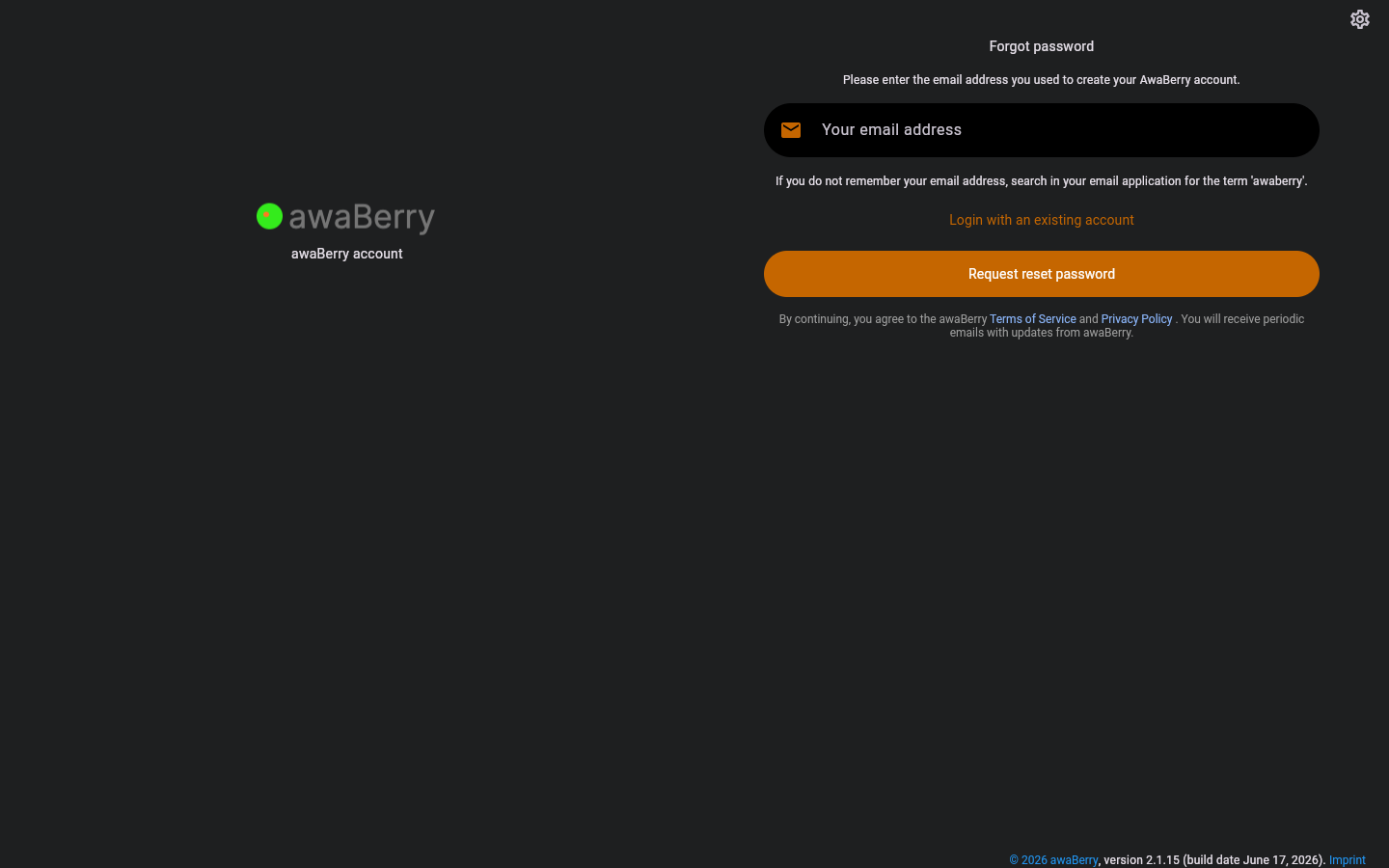
Screen on arrival
Page Functionalities
- Heading — "Forgot password" title with an explanation text.
- Email field (TextFormField, hint: "Your email address") — Enter the email used when registering.
- Email hint text — Suggests searching your email application for "awaberry" if you have forgotten which address was used.
- "Login with an existing account" link — Returns to
/login. - "Request reset password" button (ElevatedButton) — Sends the reset email.
- Captcha widget — Shown after two or more failed submission attempts.
- Error banner — Shown if the request fails.
- Terms of Service notice — Displayed at the bottom.
Scenarios
Request a password reset
- Navigate to
/initforgotpassword(via the "Forgot password?" link on the login screen). - Enter your registered email address.
- Click Request reset password.
- On success you are taken to
/waitforemailresetpasswordto enter the TAN. - On failure an error banner is shown.
Return to login
- Click Login with an existing account to go back to
/login.

